
Fitscope Studio
January 16, 2026, 1 min
Bluetooth FTMS Integration for Fitness Apps
Why Bluetooth FTMS Matters for Connected Fitness
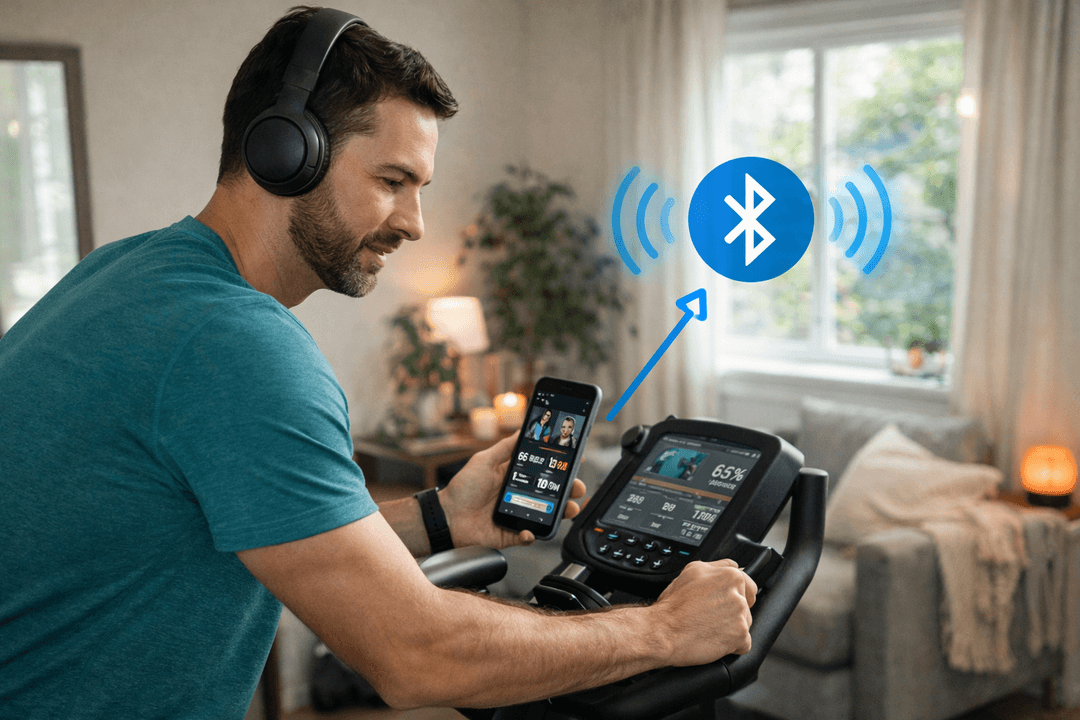
In today’s connected fitness world, app-to-equipment compatibility is king. Enter Bluetooth FTMS – short for Fitness Machine Service – the standard Bluetooth protocol that lets apps communicate with cardio machines like treadmills, exercise bikes, rowers, and more. This means a connected fitness app can seamlessly pair with a variety of equipment brands and types without proprietary hacks. FTMS has quickly become the go-to solution (the industry’s “gold standard”) for fitness apps looking to integrate live data from machines. Why? It creates a common language between your app and any FTMS-enabled bike or treadmill, much like how any smartphone connects to any car’s Bluetooth audio. The result is an ecosystem where users can mix and match their favorite equipment with their favorite training apps – enabling features like social ride-alongs, virtual racing, or live class metrics on-screen.
By adopting FTMS, a streaming fitness platform can elevate its experience with real-time data and interactive feedback. Imagine a live class where your bike’s watt output and cadence automatically display as an overlay, or a treadmill workout that adjusts speed to match the instructor’s cues. FTMS makes these possible across different manufacturers’ hardware. Previously, one brand’s bike might only work with its own app, and a runner’s treadmill data might not sync with a cycling app. Those days of siloed systems are fading. Now a single Bluetooth FTMS integration allows your platform to support multiple machine types in one unified experience. For example, the FitScope Studio app can pair with FTMS-enabled treadmills, bikes, rowers, ellipticals and more, displaying live workout metrics like speed, pace, RPM, watts, and distance right in its streaming classes. This level of compatibility is a huge win for user experience and engagement – it empowers users to use the equipment they have and still get interactive coaching and metrics. In short, Bluetooth FTMS matters because it future-proofs your fitness platform with broad fitness app compatibility, enabling richer features that keep users hooked into your ecosystem.
What FTMS Supports (and What It Doesn’t)
Bluetooth FTMS is a versatile protocol, but it’s important to understand its capabilities and limits. On the “supports” side, FTMS covers a wide range of workout data and control functions. Once a machine (treadmill, bike, etc.) is connected via FTMS, it will transmit standardized metrics to the app – things like speed or pace, cadence (RPM), power output (watts), distance, and even incline or resistance level. Essentially, all the essential workout stats your users care about can stream live. For instance, a treadmill using FTMS sends the runner’s current speed, incline percentage, distance run, and more to the app in real time. A stationary bike will send cadence and power data, and a rower can share stroke rate and split pace. This allows your app to display live workout metrics as the session unfolds, and to record them for post-workout summaries.
FTMS also supports bidirectional control in its design. That means your app isn’t just a passive receiver – it can actively send commands to the equipment. In theory, an FTMS-compatible app could tell a treadmill to adjust speed or incline, or command a bike to set a new resistance level. This opens the door to interactive workouts where the software drives the hardware (think automatic hill simulations or interval resistance changes). In fact, many fitness products have embraced FTMS as the standard specifically because it enables these advanced integrations. One exciting aspect gaining traction is FTMS-based equipment control – letting the app take control of treadmill belts or bike resistance to match the workout programming. For example, during a virtual cycling class or route, the app might increase your smart bike’s resistance when you hit a “hill,” or a running app might auto-adjust a smart treadmill’s incline to match the instructor’s route. This bidirectional capability is a game-changer for immersion and convenience.
That said, it’s equally important to know what FTMS doesn’t guarantee. First, not every machine implements the full FTMS feature set. Some equipment makers advertise “Bluetooth connectivity” but only use a portion of the FTMS profile (or a proprietary subset). A common scenario is hardware that broadcasts data via FTMS but does not accept any control commands – in other words, your app can read the metrics but cannot change the equipment’s settings. This might be due to safety considerations or simply the manufacturer locking down functionality to encourage use of their own app. Treadmills, for example, often send speed and incline data to third-party apps, but many will ignore remote commands to change speed/incline unless you’re using the brand’s official software. In the U.S. especially, it’s reported that even when a treadmill supports FTMS, the brand may reserve control features for itself, or only allow partial control (like speed but not incline). As a developer, you should verify each equipment model’s actual capabilities. Don’t assume “FTMS” on the spec sheet means full control is available – sometimes it’s data-only.
Another thing FTMS doesn’t cover is heart rate data from external sensors. The FTMS protocol is focused on the fitness machine itself; it doesn’t transmit the user’s heart rate unless the machine has built-in heart rate monitoring that it feeds through. In practice, most apps pair a separate Bluetooth heart rate monitor (using the standard Heart Rate profile) alongside the FTMS device. So you’ll need to handle heart rate pairing separately, even though it will coincide with an FTMS session. The good news is the FitScope app (and others) easily pairs a Bluetooth HRM at the same time and displays BPM on-screen – just be aware that this is a parallel connection, not part of FTMS itself.
Lastly, understand that Bluetooth FTMS (being a Bluetooth Low Energy connection) typically allows one-to-one connectivity. Unlike ANT+ sensors which broadcast to any listening device, a BLE FTMS device usually can only be actively paired to one app (central) at a time. This isn’t a “flaw” per se, but it does mean your platform should manage the connection (and reconnection) carefully. If a user tries to run two apps with the same machine, one will likely lose the connection. For most consumer scenarios that’s fine – they’ll use your one app at a time – but in gym or group environments you’ll want to ensure each machine is only feeding its designated screen. Keep this in mind if your use case involves shared equipment or multiple screens.
Bluetooth FTMS Integration Checklist for a Streaming Fitness Platform
If you’re planning how to build a fitness app that connects to FTMS cardio equipment, use this checklist to cover all the essentials. A robust integration means happier users and fewer headaches down the road. Here’s your “Bluetooth FTMS integration checklist for a streaming fitness platform” – step by step:
- Confirm FTMS compatibility of equipment: Make sure the treadmills, bikes, rowers, etc. you intend to support actually use true Bluetooth FTMS. Don’t rely on vague “Bluetooth-enabled” claims – look for “FTMS” explicitly in the specs or marketing. If a machine only works with one proprietary app and isn’t advertised as FTMS, it may not be fully open. Choose hardware that lists broad app compatibility (Zwift, Kinomap, etc.), which is a telltale sign of real FTMS support. For OEMs building new equipment, implementing the full FTMS protocol (not just partial data output) is critical to meet fitness app requirements for OEM consoles in today’s market.
- Implement a user-friendly pairing flow: Design your app’s UX so that pairing an equipment is straightforward, even for non-technical users. Common patterns include an initial “Connect Equipment” prompt when starting a workout, or a dedicated Devices screen in settings. Use clear language like “Pair your equipment” or “Find my bike” and guide the user through enabling Bluetooth and scanning. When the app scans, display the device name (and type if possible) – e.g. “XPower Treadmill 5000” rather than a cryptic ID – to avoid confusion in a crowded gym. Once connected, show a confirmation (an icon or text like “Treadmill Connected”) so the user knows the pairing was successful. The goal is to make equipment pairing as frictionless as putting on a pair of headphones.
- Display live metrics and overlays: After connecting, immediately start showing the data coming from the machine. Users love to see their performance stats integrated into the experience. Overlay current speed, pace, RPM, watts, distance, calories, etc. on the workout video or class interface. For example, runners in a Fitscope treadmill class see their pace (MPH/KPH), incline level, and distance update in real-time on the screen. Cyclists see their power output (watts) and cadence. This live feedback creates a more engaging, “smart” workout. Ensure the metrics update smoothly (typically FTMS sends updates once per second or more). Designing attractive, readable overlays or dashboard elements for these numbers will significantly enhance the user experience. It’s the difference between a passive video and an interactive session with a personal data dashboard. (Pro tip: use color-coding or highlights for key metrics to draw attention, and consider audio cues or coach call-outs tied to the data.) Incorporating these live watts and pace overlays in workout videos turns a generic class into a personalized, gamified experience.
- Include heart rate pairing and display: As noted, many users will wear a separate heart rate strap or armband. Provide a way to pair that sensor in tandem with the FTMS equipment. Often this can be part of the same pairing UI (“Connect your equipment and heart rate monitor”), or a secondary prompt right after the machine is connected. Once paired, show the user’s heart rate (BPM) alongside the other metrics on screen. Heart rate is a key training metric for effort and zones, so its presence makes the platform feel complete. The FitScope app, for example, will pair with a Bluetooth HRM and put the BPM reading on the workout display. Technically it’s a separate BLE service, but you want it to feel seamless to the user – one integrated fitness telemetry package. Just make sure your app can handle multiple Bluetooth connections at once (most smartphones can), and handle the case where a user might have one or the other device available. In short: don’t neglect heart-rate integration, since it’s part of a “complete” connected workout for many people.
- Allow device control (when appropriate): Decide if your platform will leverage FTMS’s control features to automate machine settings during workouts. This is optional, but highly attractive for certain use cases – for example, a workout where the app automatically sets a treadmill to 5% incline during a hill segment, or dials an exercise bike’s resistance to level 10 for a sprint. If you go this route, implement it carefully. Use the FTMS control point to send commands (e.g., set speed/incline or resistance) at the right moments in your class content. Always give users the ability to override or opt out of automatic control, as some may prefer manual control or their machine may not support external commands. Clearly communicate when the app is about to change a setting (“Get ready, we’ll automatically incline to 5% for this hill – hands off!”). And of course, test extensively on each equipment model to ensure there are no unexpected behaviors. Not all devices honor all commands; some bikes might accept resistance changes but a particular treadmill might ignore incline changes from third-party apps. Where control isn’t supported or is unreliable, it may be best to disable that feature and simply prompt the user to adjust manually. The bottom line: automatic control can provide a wow factor and tighter integration, but implement it in a user-friendly and safe way.
- Test across multiple devices and scenarios: Integration isn’t “one and done.” Create a testing matrix for all the equipment models you aim to support. Verify that a bike from Manufacturer A, a treadmill from Manufacturer B, etc., all connect and transmit data properly in your app. Test both iOS and Android if you support both, as Bluetooth behavior can differ slightly. Include testing for reconnection – for instance, if the user pauses a workout or the Bluetooth signal drops, does your app gracefully reconnect to the device? It’s also wise to test edge cases: What if the user starts a workout without connecting the equipment (does the app prompt them)? What if the user turns off the machine mid-workout? Robust handling of these cases will make your platform feel polished. Additionally, test with a heart rate monitor paired simultaneously to ensure dual connections don’t conflict. If your platform will be used in a gym or studio setting, test having multiple machines in proximity – is the scan list readable and can users pick the right device from several identical models? Finally, try “worst-case” scenarios like low device battery or a user walking out of Bluetooth range and coming back. The more you iron out in testing, the fewer support tickets you’ll get later.
- Provide user guidance and support: Even with a great design, some users will run into questions or hiccups. Within your app, include a quick tutorial or FAQ for connecting equipment (e.g., “Having trouble connecting? Here are some tips…”). Educate users to ensure their machine is on and not paired with another app, and that they’ve granted any necessary permissions (like location services on Android for BLE scanning). It can be as simple as a pop-up or a help link on the pairing screen. Also consider indicating the battery status of the connected device if that information is available – a user will appreciate knowing if their bike’s console batteries are low, for instance. By being proactive with guidance, you’ll help users troubleshoot on the fly. Which brings us to…
Common Pairing Flows and UI Patterns
No matter how powerful the tech is, the user experience ultimately comes down to UI and workflow. Let’s explore a few common pairing flows and design patterns that successful fitness apps use:
1. “Pair as you start a class” flow: This pattern integrates device pairing into the workout start routine. For example, a user taps on a cycling class to begin, and the app immediately presents a screen or modal: “Connect your equipment.” The app scans for nearby FTMS devices, shows “Bike found: XYZ Bike – Tap to Connect,” and within a few taps the user is connected and the class countdown begins. This flow works well because it ties the action of working out with the need to connect – users are prompted at the moment it’s relevant. It’s used by many connected fitness platforms. The key is to make it quick: if scanning takes a while, provide feedback (“Scanning for devices…”) and perhaps allow skipping if someone is using the app without a machine. Once the device is connected, the class or video can transition in, with the metrics already live. This on-the-fly pairing is convenient and ensures no one forgets to connect their gear.
2. Device manager in settings: Another approach is to have a dedicated section (often under a “Devices” or “Bluetooth” menu in the app’s settings) where users can manage their equipment connections at any time. In this UI, the user might see a list of “Available Devices” to connect and a list of “Connected Devices.” They can pre-pair their treadmill or bike here before starting a workout. The advantage of this pattern is that it gives power-users more control and an overview of all their connections (for instance, a user with a bike and a heart rate monitor can ensure both are connected before class). It also allows re-connecting or disconnecting devices outside of a workout context. For example, if the connection drops, the user could navigate to Devices and see an option to reconnect or forget a device. This pattern might require a bit more user initiative (they have to know to go into settings), but it complements the automatic prompt method well – you can implement both. Many apps do: they prompt at start, but also have a settings page for device management if needed.
3. Intuitive indicators and feedback: Regardless of the flow, good UI design includes clear indicators of connection status. Common patterns include a small icon (like a Bluetooth or equipment icon) on the workout screen that lights up or changes when connected. For instance, a “bike” icon that turns green or solid when your bike is linked, and maybe greyed out or blinking if not. This gives users at-a-glance assurance that their data is being received. If connection is lost mid-workout, the app can display a gentle warning – “Device disconnected, attempting to reconnect…” – possibly with a subtle sound or vibration. Avoid being too intrusive, but do let the user know if their metrics pause due to connectivity. Another pattern is listing the device name on the screen (“Connected to: ProSpin Bike”) perhaps in a pause menu or sidebar, so the user can verify which equipment is currently feeding data.
4. Pairing multiple devices: In many cases, users will pair one cardio machine and one heart rate sensor. Design the UI to handle both. This could mean the initial pairing prompt includes two steps (first select your equipment, then select your HR monitor), or having separate prompts that appear in sequence. Some apps show a list categorized by type: “Select your equipment” (list of FTMS devices found) and “Select your heart rate monitor” (list of HR sensors found). This is a clean approach that ensures the user doesn’t confuse one for the other. If your platform supports other peripherals (like cadence sensors, power meters, or even Bluetooth fitness wearables), those could be integrated similarly. The main UI principle is to keep it simple and context-aware – only show relevant device types at each step, label them clearly, and maybe use icons (a treadmill icon next to treadmills, a heart icon next to HR monitors, etc.). By making the pairing flow visual and guided, you reduce the chance of error.
5. Edge-case UI considerations: Think about scenarios like a user who has multiple of the same machine (maybe a home gym with two bikes), or gym environments where many devices are around. You might want to display partial device IDs or let users nickname their devices after first connect (“John’s Treadmill”) for easier future pairing. Additionally, consider timeouts and fallback options: if no device is found within, say, 15 seconds, prompt “Unable to find equipment – try again or skip.” Perhaps offer troubleshooting tips right there (“Make sure your machine is powered on and not connected elsewhere.”). A polished UI anticipates these friction points. Lastly, once a device is paired, ideally the app should remember it and auto-reconnect next time if the device is on. Many platforms implement a “trusted devices” list so that returning users don’t have to scan every single workout – their bike just connects when the app detects it. This kind of convenience can set your user experience apart.
Troubleshooting FTMS Connectivity in Your App
No integration is complete without planning for troubleshooting. Users will inevitably hit snags when trying to pair or use their equipment, so it’s wise for your platform to handle these gracefully. Here are common FTMS connectivity issues and how to address them:
Device not found during scan: This is a frequent issue, especially for first-time users. If your app isn’t finding the user’s equipment, the simplest explanation is often that the machine’s Bluetooth isn’t turned on or in pairing mode. Encourage users to double-check that the machine is powered up (some consoles go to sleep) and, if applicable, not already connected to another device. Another culprit is permissions – on Android, location services must be enabled to scan for BLE devices. If a user has denied location or Bluetooth permissions, your app should detect that and prompt them to enable the necessary settings. Always handle the “no devices found” state with a helpful message like “No equipment found. Make sure your machine is on and Bluetooth is enabled.” You can even list a few tips (“If you have an older machine, it might not be FTMS-compatible” or “Restart the equipment if it isn’t discovering”). This way, the user isn’t left guessing what to do next.
Device shows up but fails to connect: If the app sees the device but can’t establish a connection, a common reason is that the equipment is already connected to something else. Many users don’t realize that if they’ve ever paired the machine to their phone’s system Bluetooth or another app, it might block your app from taking over. In your troubleshooting guide, mention to “ensure the equipment isn’t actively connected to any other app or device.” On a technical level, you might attempt to connect and if it fails, present an error with that advice. Another reason could be a firmware quirk – some devices require entering a PIN or confirming connection on the machine’s console (though rare for FTMS). If your target users are using a particular brand that does this, guide them accordingly. Finally, sometimes a simple app restart or toggling the phone’s Bluetooth radio can resolve transient connection issues – not ideal, but worth suggesting if all else fails.
Data is not updating or seems wrong: Suppose a user connects their bike and it shows as connected, but the metrics aren’t coming through or are obviously incorrect (e.g., speed stuck at 0, or values wildly off). Your app should detect if it’s not receiving data packets and notify the user (“Connected to device, but no data. Try pedaling to wake the sensor, or reconnect.”). If data is coming but looks wrong (say, a bike reporting 2500 RPM – clearly impossible), it could be a misinterpretation of the FTMS data structure. Ensure your developers are using the correct FTMS characteristics for the right machine type. FTMS has separate data schemas for treadmill vs bike vs rower; using the wrong one might scramble values. This is a deep technical fix, but on the user side, just encourage updating to the latest app version (in case it’s a known bug you’ve fixed) or confirm if the machine’s firmware is updated (outdated firmware might send faulty data). In any case, have a support channel ready – sometimes specific model incompatibilities arise, and you may need to work with the manufacturer to resolve it.
Connection drops or is intermittent: Bluetooth connections can occasionally drop due to interference or distance. If users report that their device keeps disconnecting, there are a few things to check. First, the range: BLE is usually reliable up to 10 meters, but walls or radio interference can cut that down. Advise users to keep their phone/tablet near the equipment – e.g., use a device holder on the bike or treadmill. Also, high Wi-Fi or microwave interference in the area might be an issue; using newer Bluetooth 5.0+ devices can help as those have improved range and stability. On the app side, implement an auto-reconnect feature. If the signal is lost, the app can attempt to reconnect in the background so the user’s workout isn’t ruined. If reconnection isn’t possible (device fully off or out of range), show a polite message and pause the metrics. It’s also worth logging these events (with user permission) so your team can analyze if certain devices frequently drop – it might indicate a hardware problem. Encourage users to ensure their equipment’s batteries are fresh or the unit is plugged in; low power can affect Bluetooth strength. Lastly, keep your app’s BLE library up to date, as connectivity improvements often come with OS updates and library updates.
App crashes or hangs when pairing: This is less common if using stable libraries, but if your app does struggle under certain conditions (e.g., trying to pair two devices at once), make it a priority to patch those. Provide updates and communicate in your release notes if you fixed a connectivity issue with a specific device. Users appreciate transparency, especially if they’ve been dealing with a glitch. In-app, you can mitigate some issues by not locking up the UI during scanning/connecting (perform those asynchronously) so even if a connection attempt stalls, the user can cancel or try again without the app freezing.
Above all, make sure your support team or documentation covers the basic how to troubleshoot FTMS pairing issues. Things like “turn it off and on again” (for both the machine and Bluetooth on the phone) often resolve one-off issues – don’t hesitate to include that advice. Many problems can be solved by simple steps if the user knows them. By building robust troubleshooting into your app (both in design and in documentation), you’ll reduce frustration and increase the likelihood that users stick with your platform even when tech hiccups occur.
Final Thoughts: Building a Reliable FTMS-Based Experience
Integrating Bluetooth FTMS into your fitness app or platform is one of the best moves you can make to deliver a modern, connected workout experience. It enables compatibility with a wide range of cardio equipment, unlocks rich real-time metrics, and can even allow immersive touches like automatic resistance or incline changes. As we’ve discussed, success lies in the details – from verifying hardware compliance to smoothing out the UX and handling edge cases. The payoff, however, is a product that feels seamless and “just works” with whatever machine your user has at home or in the gym. In an era where users expect their apps and devices to sync effortlessly, offering robust FTMS integration sets your platform apart as reliable and forward-thinking.
For product managers and developers, an FTMS project is both a technical integration and a partnership exercise. You may find yourself collaborating with equipment manufacturers to test compatibility or encourage them to fully support the standard. When done right, it’s a win-win-win: great for the user, great for your app’s engagement, and great for the equipment makers who get more usage on their machines. If you’re working with OEM fitness equipment manufacturers, insist on full FTMS support in the console – it will save everyone time and vastly improve fitness app compatibility. Many forward-looking manufacturers are already doing this, knowing that open compatibility adds value to their products (and those who don’t will likely catch up or get left behind).
As a final note, remember that you don’t have to build everything alone. Consider leveraging existing platforms and expertise to accelerate your development. For example, FitScope offers a proven connected fitness solution – including an FTMS-enabled app and a library of studio classes – that can be licensed or adapted for your needs. Through B2B content licensing and custom production services, FitScope partners with brands and equipment manufacturers to jump-start their streaming fitness offerings. Whether you need white-label class content, guidance on equipment integration, or full-scale production of tailored workouts for your platform, teaming up with an experienced partner can dramatically reduce your time-to-market and ensure a polished user experience from day one. It’s a smart way to get a reliable FTMS-based experience up and running without reinventing the wheel.
In summary, building a streaming fitness platform around Bluetooth FTMS integration is a worthwhile endeavor that can delight users and keep your product relevant as the industry evolves. By following the checklist and best practices above – and staying mindful of the user’s perspective at every step – you’ll create a robust, enjoyable, and future-proof fitness experience. From accurate live metrics and smooth equipment pairing to troubleshooting and beyond, it’s all about sweating the details now so your users can just focus on sweating through the workouts. Embrace the technology, test thoroughly, and don’t hesitate to lean on available expertise. Do that, and you’ll deliver an app that not only connects to bikes and treadmills, but ultimately connects with your audience for the long run.

Commercial Subscription
Allows Fitscope classes to be used in a commercial gym or boutique studio (1 location) with up to 500 members. Multiple simultaneous users enabled. Lets Talk!

© Fitscope Technologies LLC, 2023
Powered by  Fitcaster